> For the complete documentation index, see [llms.txt](https://docs.existent.com/documentation/llms.txt). Markdown versions of documentation pages are available by appending `.md` to page URLs; this page is available as [Markdown](https://docs.existent.com/documentation/v0.0.2/learning-existent/getting-started/setting-up-player-pawns-and-animations.md).
# Setting up Player Pawns & Animations
This section guides developers through creating a player pawn, including adjustments to skeletal meshes and animation blueprints within the Existent Start Map. Follow these steps to customise your player pawns and animations.
1. Create a new Blueprint Actor that inherits from ExistentPlayer, e.g name it BP\_ExistentPlayer.
2. Open the newly created blueprint, create a new TrackerMappings asset and assign it to the TrackerMappings property of the BP under the Existent/Skeleton category.
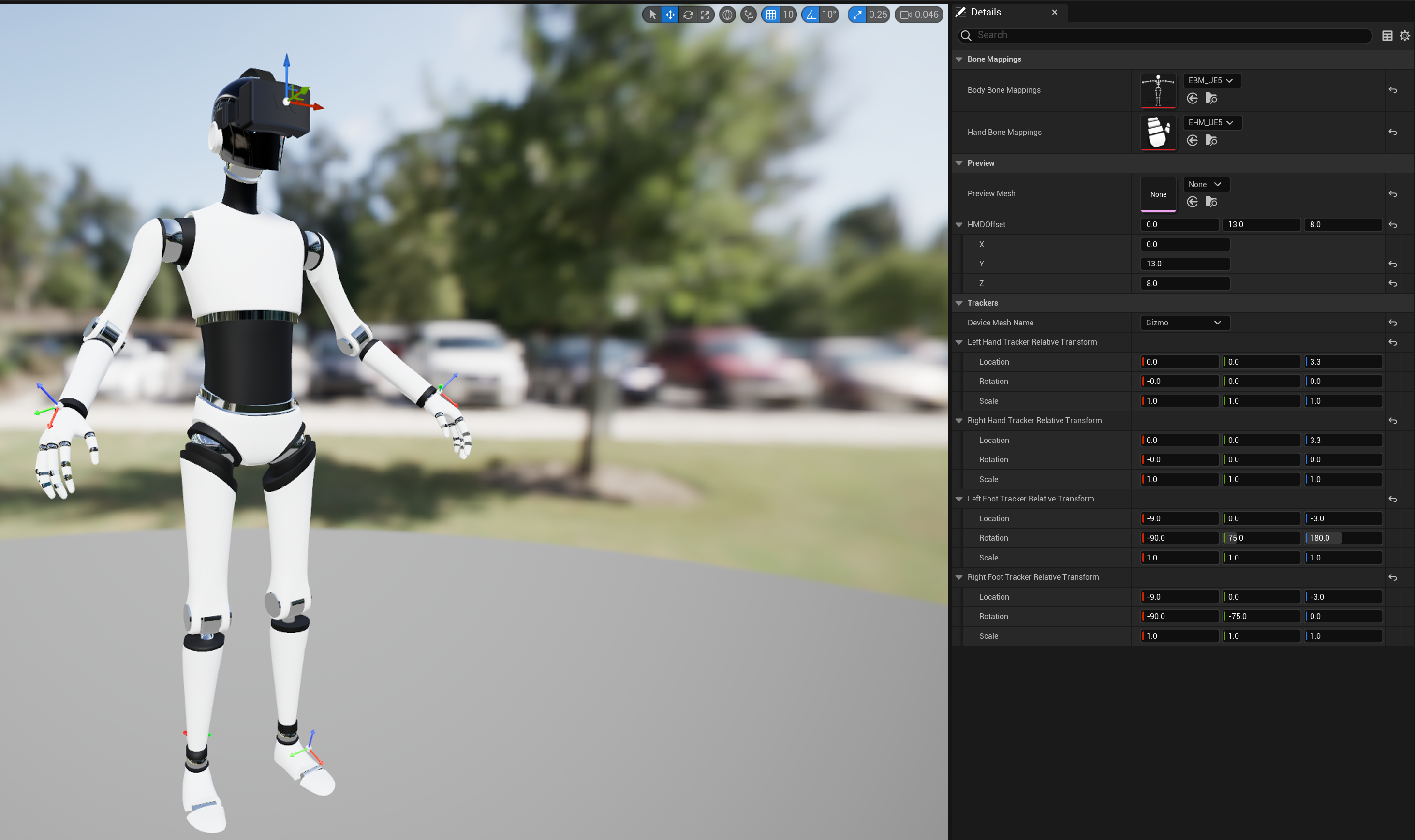
3. Use the asset editor to set the location of the HMD, hand, and feet trackers according to where your players will physically wear them. Select the `Body Bone Mappings` and `Hand Bone Mappings` you wish to use. Assign a preview mesh for the skeleton and specify the device mesh name. See [Tracker Mappings](/documentation/v0.0.2/guides/customising-player-avatar/mappings/tracker-mappings.md) for more information. You can also use one of the predefined tracker mappings within the Existent Plugin.
Example Setup for Livelink (Optitrack) using Gizmos
Example Setup for Vive Ultimate Trackers
4. On the Player Body component, set the Animation Blueprint to either AB\_3Point for upper body tracking or AB\_5Point for full body tracking. You can customise this with your own animation blueprints later.
5. Select the Left Hand Tracker component and under Existent category assign a Tracking System e.g LiveLink as well as the ID that should be used. You don't need to decide now as you can dynamically overwrite it later. Do the same for Right Hand Tracker as well as the HMD Reference Tracker.
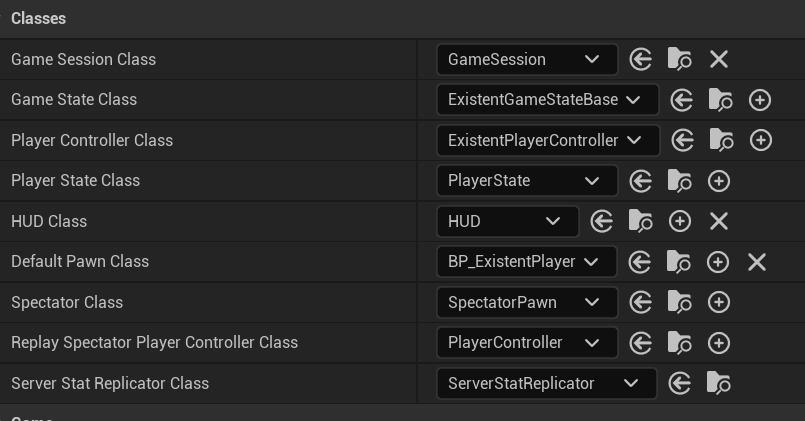
6. Save and exit the player blueprint, create a blueprint that inherits from ExistentGameMode. Within that blueprint set the default player pawn to the new player blueprint you just created and ensure that Existent Player Pawn Classes has no elements in it.